Showing posts with label SCOM 2012. Show all posts

Tuesday, October 9, 2018

Monitoring SNMP v1 Trap

Creating a post on some work I'd done couple of year ago so that it won’t be forgotten.

I know SNMPv1 is definitely obsolete by now but what if there are still some requirements to monitor SNMPv1 traps with SCOM ?

One of the way is to

  1. Create a custom MP on the trap you are going monitor with SCOM
  2. Export that custom MP as an XML
  3. Within the XML file, locate the version tag (<version>…</version>)
  4. Replace the string within the tag to 1, refer samples below


Before

image


After

image


and that should do the trick Smile

Monday, October 31, 2016

SCOM Dynamic Groups and Regex

Came across the need to create SCOM groups that consist of both Development and Production servers. While it is easier to have them explicitly populated into the correspondent groups but that would required exhaustive administrative effort from the SCOM admins to always validate the membership of the groups from time to time.

Most of you may know that not every organization has a standard naming convention for their servers like XXX-XXX , and the question now is what will be the regex expression for servers that either ends with d or p indicating whether this is a development or production servers ?

Well it might sound complicated (or at least to me) where how many characters or numbers that we need to consider, since the server names do no have a fixed length.

After some trials and errors, turned out to be quite a simple fix. The following expression will fit in

(?i:p$) –> means case insensitive and ending with a p (or P). Feel free to change the expression to suit your needs.

Wednesday, March 18, 2015

SCOM 2012 R2 UR 5

With the recently launched of the SCOM 2012 R2 UR5, one of the issue it addressed was the “Specific Case is not valid” error when you remove the agent in a server that has SQL server installed, without removing it from the SQL runas account distribution. Please refer to the previous posting here. This should save us the hassle of having to manually update the SCOM databases, without fearing that it might affect the supportability from Microsoft.

As for how to apply the patch, this is one of my favorite blog for SCOM resources

http://blogs.technet.com/b/kevinholman/archive/2015/02/22/ur5-for-scom-2012-r2-step-by-step.aspx 

Information about the patch can be found here, as well as the link to download

https://support.microsoft.com/en-us/kb/3023138

Monday, February 9, 2015

SCOM Run As Account - Specific Cast Is Not Valid

Got the following error when i tried to add new servers into my SQL MP RunaAs account distribution

image

Once you click “Close”, you won’t get to see any other computers which this run as account has been distributed previously.

image

Well, the cause of this is actually due to agents are manually removed from the “Agent Managed” within the SCOM console, but without cleaning up the distribution of the RunAs Account.

In order to resolve this, i had deleted the specific entry from the OperationsManager database based on the solution found in http://www.ssistalk.com/2014/03/03/scom-2012-r2-specified-cast-is-not-valid-error/ 

Once done, the server which this account is distributed is visible again

image

p/s: updating the data directly in SCOM databases might impact the supportability from Microsoft. So do it at your own risk

Monday, October 27, 2014

Agent Installation Error (Error Code : 80072971)

At times,we might experience another frequently seen error as below, where the agent management task status displays something like “….failed to acquire lock to remote computer….”

image 

This is due to when SCOM agent is pushed from the SCOM Management Server, the MS will first copy the install (& the patches) to the target machine at c:\windows\422C3AB1-32E0-4411-BF66-A84FEEFCC8E2 folder, and if you managed to browse to the folder,there should be a file named LockTimeFile. This file is to determine which SCOM MS is attending the target server at the moment.

By default, once the installation is completed, the folder will be automatically deleted when the installation completes, however there is changes that the folder / files are not successfully removed.

image

In order to resolve this, one of the way is to delete the LockTimeFile and the SCOM agent was successfully installed

Wednesday, October 8, 2014

SCOM SharePoint 2010 MP troubleshooting

Encountered the following error message in SCOM event viewer for one of the SharePoint 2010 servers. Searching around the net, found 2 links with valuable information on resolving it.

http://www.scom2k7.com/advanced-troubleshooting-of-the-sharepoint-2010-mp/

http://thoughtsonopsmgr.blogspot.com.au/2013/04/troubleshooting-sharepoint-server-2013.html

Basically it seemed might have to do with PowerShell 3.0 (for Sharepoint 2010), and one of the solution was to uninstall the PowerShell 3.0, but before doing so, you might want to verify it further by granting the SCOM SharePoint MP account to have SP farm admin rights, to see if it is able to launch the SP cmdlets.

Hope this helps :)

Monday, August 25, 2014

Agent Installation Error (Error Code :80004005)

Faced a problem recently when trying to upgrade the version of the SCOM agent to the latest 2012 R2.
Error message is similar to the below
The Operations Manager Server could not execute WMI Query "Select * from Win32_Environment where NAME='PROCESSOR_ARCHITECTURE'"
Operation: Agent Install
Install account: <SCOM runAs>
Error Code: 80004005
Error Description: Unspecified error
This is due the 'PROCESSOR_ARCHITECTURE' variable, does not return a value, which causes agent push to failed. (the manual installation seemed to work though) Checking on the web and it does not seemed to have a permanent solution, however, there is a workaround which should help to complete the agent installation via push method. Many thanks to stefanroth.net for such sharing


Wednesday, April 10, 2013

Monitoring Java EE Application Servers

We all know that with SCOM is fantastic in monitoring Microsoft roles and services with the relevant Management Packs, but what about those from non-windows platform ?

I had recently deployed a SCOM agent to monitor an Ubuntu server (and the Ubuntu server is hosted pretty much well in a Windows 2012 hostSmile) , and the server was installed with Apache Tomcat and MySQL.

We are able to monitor the service availability of Tomcat server via a simple service monitor, but what if we are required to perform a deeper monitoring in terms of the availability of the applications hosted and also the performance of the Tomcat ?

You can either purchase a third party MP or you can actually download the JAVA EE MP from the Microsoft website to do the same.

The JAVA EE management packs can be downloaded from the official website http://www.microsoft.com/en-us/download/details.aspx?id=29270, and for the first time users, it will be useful to go through the SC2012OM_JEE_Readme.txt included at the MP download page.

For a start, i am testing on Tomcat Apache 6.0 web server. During the MP is imported, things were not automatically discovered even after i had deployed the BeanSpy.

Next, what needs to be done is to copy the following powershell scripts and put it in a single folder, and run the NewJEEAppServer.ps1

JEEAppServerLibrary.ps1
NewJEEAppServer.ps1
RemoveJEEAppServer.ps1  (optional as i am not removing any server)

image

If everything goes smoothly, it should display you the response as above. and when discovery is done, some of the views (state and performance) are what you should be able to see.

image

image

image

SCOM Cross Platform monitoring

Based on one of my SCOM assignments which requires Ubuntu to be monitored, we all know that with the previous SCOM 2012, this might not possible (well, we can still use SNMP to monitor whether the server is up or down, but nothing further than that i guess)

With the release of System Center SP1, which monitoring of the version and variants of cross platform OS has been extended, i am quite eager to see how this is possible.

What i have in the lab is a virtual Ubuntu 12.04 server hosted in a Windows Server 2012 server, with apache Tomcat and MySQL services installed. First is to install the SCOM Agent and to make things easier, i have been using root account for the agent installation.

Some of the screen from the monitoring are as below.

image

imageimageimage

Stay tuned to my upcoming posts on monitoring Apache Tomcat Web Server via Microsoft JEE Application Server MP.

Thursday, February 7, 2013

Error in installing additional SCOM Management Server

Not to say an expert, even though I had been working with SCOM for quite some time, error below was the first time I encountered during a recent engagement. Error below occurred when I tried to install a third SCOM management server which was totally unexpected, since the installation for the first and the second MS was done successfully without much hiccup.

Tried to repeat the installation again but the failure rate was 100%. Check out the internet and it seems that this might have something to do with the SQL connection time out, while the installation was trying to connect to the SCOM DB server to register the new Management Server.

One of the way you could possibly try is to extend the duration before the connection is timed out, and this requires updating the registry key of the server before the installation is re-started. Following will be the key that needs to be created.

image

Once created, reboot the server and try to reinstall the SCOM Management Server again. It should work this time (well at least it worked for me Smile)

note: one thing to take note about before you reinstall the MS is that, you must remove that particular server from the management server list via the Operations Console. If not, you will not able to select the OpsMgr database during the MS installation.

Tuesday, December 11, 2012

Upgrading System Center Operations Manager 2007 R2 to 2012 (pt.2)

It has been a while since my previous post about upgrading SCOM from 2007 R2 to 2012. Apologies to my oversight in the post earlier, you will need at least CU4 to proceed with the upgrade, together with other required pre-requisites.

Well, glad to say that now I had a production upgrade before and guess I can share more experience here. What I have was a multiple Management Server environment with more than 300 agents.

The whole upgrade exercise was divided into a few stages, from reinstalling the SQL server again, from 2008 to 2008 R2 (for future SP1 upgrade) and upgrading the management servers by stages, starting from the secondary management servers

While upgrading the management servers, it should be quite straight forward as the SCOM 2012 installer will be able to determine whether it is a fresh installation or an upgrade, something like below and the follow the wizard to complete the upgrade.

clip_image002

Once done, you should be able to see the version number changes of the management server that has been upgraded to SCOM 2012 via your 2007 R2 Operations Console and during the upgrade exercise, the 2 versions of SCOM can actually co-exists pretty well if you are doing the upgrade similar to what I had done.

image

However, if there is an Operations Console installed in the upgraded management server, you will not be able to access it and you will be prompted with the familiar “Data Access Service is not initialized…”.

Once the upgrade stabilized, you can now proceed to upgrade the SCOM agents which are reporting to this management server. As for the manually installed Agents, you will to manually upgrade it. Please take note that in certain circumstances, the agent update might be failed, IF it does not meet the requirements of a SCOM 2012 agent.

Wednesday, July 18, 2012

SCOM Installation Headache !!! (pt.2)

In my previous post, I was not able to test out the kb974886 hotfix since I was not able to reproduce the error in my lab environment. Well as of today, I got the luxury of simulating the problem using a live data.

A few things to keep note before applying the fix in the DC is that, firstly it is better for you to check out the version of the samsrv.dll file in the DC (under %systemroot%\system32 directory.) The current version should be less than 5.2.3790.4250.

image

Next, proceed to install the hotfix. Installing the hotfix should be straight forward whereby the installation wizard will leave you an option “not to reboot the server” after the installation completes. But if you do no check this option, the wizard will automatically reboots your DC, once the installation completes.

imageimageimageimage

When the DC is back online, you may check the version number of the samsrv.dll again. By this time, the version number should be 5.2.3790.4250.

image

Now, proceed with the SCOM installation. At first you might be hitting the same old authentication problem again, when the SCOM installation wizard prompts you for the SCOM action account credential. If you have the similar experience, what you need to do is to relogin to the SCOM server again and re-initiate the SCOM installation. By this time, your credential should be successfully authenticated.

The same goes to other SCOM servers, if you are installing the components in different servers.

Friday, July 13, 2012

Activating SCOM 2012

Be default, even after you had successfully installed SCOM 2012 into your environment, it will be in Evaluation version.
image
Searching around the net, you might have found the ways to inject the productID but unfortunately for me, it does not seemed to be smooth for me. After a few tries, the following should be the easiest way (at least to me Smile) to apply the product key.
image
  • run the PowerShell via elevated permission
  • follow the commands as attached above
Once successfully done, repeat the steps in all other SCOM servers you have in your environment. Once done, it is best to reboot your SCOM servers. After the server is reboot, launch the SCOM console again and check if license key had been successfully registered. If it is, then you will see the status similar to the below
image

Tuesday, July 3, 2012

SCOM 2012 Cumulative Update (CU) 1

The CU 1 for SCOM 2012 has been released. Thank god, this time around, the installer size seems to be less than 100mb, (75mb to be exact), where you can get it here.

Cutting the story short, once extracted to a desired folder, there will be several .MSPs and .MPBs files extracted. It also comes with readMe.txt file which refers you to the KB2674695 article.

image

The installation order for the patch should be started by Server, then followed by each of the components installed in your SCOM Management Servers. Final step will be importing the updated management packs bundled with this update.

Apart from the update dll updates for console and webconsole, another thing to take note is that once the “KB2674695-AMD64-Server” patch has been applied, the patch for the SCOM agents will be automatically extracted to the AgentManagemt\amd64 folder
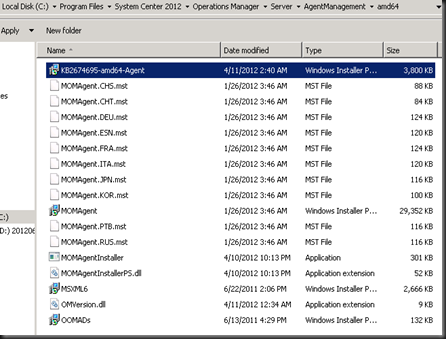
image

With SCOM 2012 CU1, you do not have to manually patch the Agents, once the Management Servers has been updated. In fact, this can be done automatically whereby what you need to do now is to open the “Pending Management” tab, you will be able to see a list of the Agents that need to be updated.

image

Once approved, for the update, a job will be invoked and display you the status, similar to what we have when installing a SCOM Agent

image

From here, you have the option to select all the agents from the same Management Server to perform the update at one go.

To check if all the Agents had been successfully patched, at the SCOM Console, go to OperationsManager –> Agent Details –> Agents by Version, and you should be able to see the patch list information
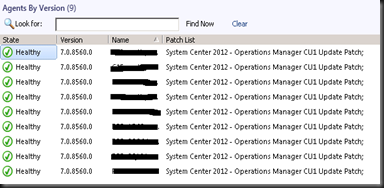
image

To have a complete listing about the SCOM 2012 CU1, please visit here.

Changing Management Servers for SCOM 2012 Agents

I think most of the SCOM experts out there already know how to switch the Management Server a SCOM 2012 Agent is reporting to. Nevertheless, I am posting it again as a handy quick reference if is it needed eventually.

Imaging on a scenario that your existing Management Server is a little tied up with the resources and you now have a new Management Server to ease things a little bit. This first thing you decide is to move some of the agents to the new server. At the existing SCOM Management Server, highlight the agent that you would like to move, and select “Change Primary Management Server”

image

Once done SCOM will then display you all the Management Servers within the Management Group, together with the Agents there are managing.

image

Select the desired Management Server and click OK

Once done, Agent of the selected server is now pointing to another Management Server

image

Wednesday, June 20, 2012

SCOM Installation Headache !!!

I am now slowly picking up my SCOM skills and what i can say is that, it never fails to surprise me each time Smile, where chances are, you might get stuck in the simplest thing you can imagine.

In another posting which i was supposed to implement SCOM 2012 infrastructure, installation of the SCOM servers should be straight forward, but in end, it took me almost 3 days to find out what’s wrong. I got hit by the error below.
image
With the error message like this, you might think that it is probably due to incorrect passwords or the length of the password might be a bit too long. Had made sure that the passwords are correct and even reduce its length for testing. In the end it still won’t work.
Sensing something is not very right, i opened up the SCOM installation logs located in  “C:\users\<SCOM installation account>\AppData\Local\SCOM\LOGS” , which shows you the below
image
Open up the “OpsMgrSetupWizard”, try to see if the following entries are logged,
image
If it is, chances are you might want to check with your client to see if there was any “Authoritative Restore” done to their AD recently.
You may want to refer to this kb974886 article. Since i was not able to re-produce the problem in the lab environment, i am not able to comment if this hotfix does resolve the issue. If anyone of you out there who had the similar problem as mine and tested this hotfix, appreciate your valuable comments.
The reason why it took me a while before realizing this was because there isn’t much documentation on this, and I've decide to make a post for this so that this could be for reference in the future.

Friday, May 4, 2012

Upgrading System Center Operations Manager 2007 R2 to 2012

With the launching of System Center 2012, you might be tasked to upgrade existing SCOM 2007 R2 infrastructure to 2012. Information relates to the upgrade can be found here http://technet.microsoft.com/en-us/library/hh205974.aspx . To cut the story short, this is what you need to make sure that the upgrade is successful

In your existing SCOM 2007 R2, (well, at least in my testing environment) it should come with CU 5 installed. Next, before the upgrade, make sure that the server is running 64 bit OS. (can refer to list of support configuration for 2012 here). Next, you will have to install all the pre-requisites needed for SCOM 2012 such as the .Net Framework 4, ReportViewer and Silverlight. (for this, the SCOM 2012 setup wizard will run a pre-requisite checks for you, before you proceed.)

It is told that the agents will need to be upgraded, before monitoring can be resumed. But how are you going to upgrade the agents, if your environment monitors a large number of servers, for e.g. more than 100 servers ? If you are going to manually upgrade it, then it might take time.

Another way you may try is to upgrade the agents, after the RMS and MS had been successfully upgraded to 2012. When you launch the SCOM 2012 console, under the “Pending Management” section, SCOM 2012 will actually show you the list of Agents that require update. What you need to do is to manually approve the upgrade for the agents and it will be automatically handled by SCOM 2012 after this.

image