Showing posts with label Tweaks. Show all posts

Monday, October 29, 2018

SCOM 1807 Universal Linux Monitoring

Recently discovered that some of the CentOS boxes that I've pushed the agent into came up as “Version Unknown” at the UNIX/Linux Computers within the Administration space in the SCOM console.

Checking further, there’s no monitoring data for the usual CPU / Memory / Logical Disk and Network from the servers.

Did a bit of troubleshooting and realized that from the “Microsoft System Center 1807 MP for UNIX and Linux” downloaded here, it seems to be missing the “Microsoft.Linux.Universal.Monitoring.mp”

image

Once imported the relevant mp from the SCOM 1801 media (notice the version difference), all started to work again Smile

Tuesday, October 9, 2018

Monitoring SNMP v1 Trap

Creating a post on some work I'd done couple of year ago so that it won’t be forgotten.

I know SNMPv1 is definitely obsolete by now but what if there are still some requirements to monitor SNMPv1 traps with SCOM ?

One of the way is to

  1. Create a custom MP on the trap you are going monitor with SCOM
  2. Export that custom MP as an XML
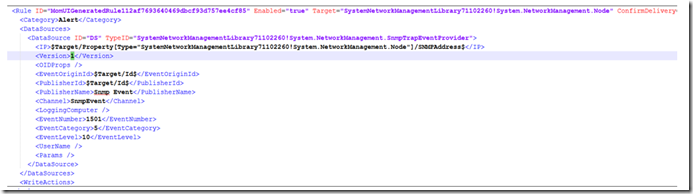
  3. Within the XML file, locate the version tag (<version>…</version>)
  4. Replace the string within the tag to 1, refer samples below


Before

image


After

image


and that should do the trick Smile

Monday, October 8, 2018

Setting OneDrive folder to be Always Available Offline

Was recently thrown with a challenge during a Windows 10 migration project for a client to set certain folders in their OneDrive for Business to be always available offline, once user’s data has been successfully migrated (to OneDrive) from on premise file server.

For the benefits of  everyone, latest version of OneDrive for Business client comes with improved features that allows you to either set files / folders to be always available offline or online (to free up spaces of your local storage)

image

While this option is available out of the box when the OneDrive sync client has been successfully setup, how do we further automate it so that certain files / folder can be set to “Always keep on this device (available offline)” without user’s intervention ?

Referring to the details online, we can create a PowerShell script using the attrib.exe, but based on my testing, “attrib -U +P /s” sets all the files / subfolder of the target folder you performed the command at to be available offline but not the parent folder.

To fix this, you can include a /D switch, as in “attrib -U +P /s /D”.

I’ve included a humble script of mine to apply the settings when the folder exists and the settings had not been applied.

$targetFolder = "<Target Folder>"

$rootDir = $env:userprofile + "\<your OneDrive Path>"
$FolderPath = $rootDir + "\" + $targetFolder


if (test-path $FolderPath)
{
     set-location $rootDir

    $Attrib = attrib $targetFolder

    $Attrib = $Attrib.trim()

    $arrayAttrib = $Attrib.Split("C:")

    $fileAttib = $arrayAttrib[0]
     $fileAttib = $fileAttib.TrimStart()
     $fileAttib = $fileAttib.TrimEnd()

    if ($fileAttib -ne 'P')
     {
         Set-Location $FolderPath
         attrib.exe +P -U /S /D

        Set-Location $rootDir
         attrib.exe +P -U /S /D $targetFolder
     }
}


Linking this script to a GPO logon script will make sure that the desired folder is always set available offline when user logs into their machine.

Enjoy… Smile

Thursday, January 18, 2018

SCOM PowerShell Script Monitors

I was recently asked if there’s a way to raise a SCOM alert when a scheduled task is not in “Running” state. From the community MPs, I reckoned it is only giving an alert when the tasks return a “Failed” state. I might be wrong, but if there’s one out there, appreciate if someone can enlighten me on this.

Have tried using vbscript via WMI calls but it worth taking note that, while it makes a query from “Win32_ScheduledJob” class, tasks created in the Windows Task Scheduler will not be listed.

We ended up exploring PowerShell and managed to write a simple script for this, but setting up the monitor was not as straight forward as it seemed.

Out of the box, SCOM provides the functionality to create VBScript based monitors, but if you are to create a similar monitor with PowerShell, first impression is that the monitor seemed working as expected (giving you a green tick), but as you test further, you will notice that the health state does not get updated, even when it qualifies for an unhealthy condition.

Looking at the OperationsManager event logs, you should see event 21405, saying the process failed to create System.PropertyBagData…, and interestingly, SCOM was trying to execute your PowerShell script using cscript.exe

Command executed:    "C:\Windows\system32\cscript.exe" /nologo "<your ps script>.ps1", as you can see below


To fix this, you either create a new custom MP to include the PowerShell script monitor (either Silect , VSAE) OR import a PowerShell script community based MP. I chose the latter since it is only a simple monitor and didn’t want to spend more time into it.

Once imported, you should be able to create a script based monitor, only this time, instead of VBScript, it will be in PowerShell.

Hope this helps :)

Monday, October 31, 2016

SCOM Dynamic Groups and Regex

Came across the need to create SCOM groups that consist of both Development and Production servers. While it is easier to have them explicitly populated into the correspondent groups but that would required exhaustive administrative effort from the SCOM admins to always validate the membership of the groups from time to time.

Most of you may know that not every organization has a standard naming convention for their servers like XXX-XXX , and the question now is what will be the regex expression for servers that either ends with d or p indicating whether this is a development or production servers ?

Well it might sound complicated (or at least to me) where how many characters or numbers that we need to consider, since the server names do no have a fixed length.

After some trials and errors, turned out to be quite a simple fix. The following expression will fit in

(?i:p$) –> means case insensitive and ending with a p (or P). Feel free to change the expression to suit your needs.

Thursday, November 26, 2015

SCCM 2012 R2 Clients failed downloading content

Was required to manage clients in untrusted domain in a recent SCCM deployment and one of pilot machine (Windows 7) was not able to have the published app successfully installed, while the other got installed successfully.

Checking on the DataTransferService.log, it includes log saying “DAV request. HTTP code 401, status 'Unauthorized'”

Checked and verified that the network access account for SCCM has been configured and there’s no firewall restriction between the client and SCCM server.

Googled around and found out that KB2522623 might be able to fix the problem, and it really did once the patch was applied.

Wednesday, March 18, 2015

SCOM 2012 R2 UR 5

With the recently launched of the SCOM 2012 R2 UR5, one of the issue it addressed was the “Specific Case is not valid” error when you remove the agent in a server that has SQL server installed, without removing it from the SQL runas account distribution. Please refer to the previous posting here. This should save us the hassle of having to manually update the SCOM databases, without fearing that it might affect the supportability from Microsoft.

As for how to apply the patch, this is one of my favorite blog for SCOM resources

http://blogs.technet.com/b/kevinholman/archive/2015/02/22/ur5-for-scom-2012-r2-step-by-step.aspx 

Information about the patch can be found here, as well as the link to download

https://support.microsoft.com/en-us/kb/3023138

Monday, February 9, 2015

SCOM Run As Account - Specific Cast Is Not Valid

Got the following error when i tried to add new servers into my SQL MP RunaAs account distribution

image

Once you click “Close”, you won’t get to see any other computers which this run as account has been distributed previously.

image

Well, the cause of this is actually due to agents are manually removed from the “Agent Managed” within the SCOM console, but without cleaning up the distribution of the RunAs Account.

In order to resolve this, i had deleted the specific entry from the OperationsManager database based on the solution found in http://www.ssistalk.com/2014/03/03/scom-2012-r2-specified-cast-is-not-valid-error/ 

Once done, the server which this account is distributed is visible again

image

p/s: updating the data directly in SCOM databases might impact the supportability from Microsoft. So do it at your own risk

Thursday, January 8, 2015

Windows Data Deduplication – Garbage Collection

Running on a limited SSD storage in machine, the first thing after it was setup is to create 2 logical disk partitions (OS and Data) and to enable data deduplication on the data drive (well, you might know now that we are not able enable data deduplication for OS partition)

Windows 8.1 does not come with a data dedup feature but i supposed there should be lot’s of links in the net that can guide you to enable data deduplication in windows 8.1

Once configured, you should be able to reap the rewards of huge disk space saving especially if you the machine is hosting some test VMs. But after a while, you might find that the disk space does not decrease over time, even after you manually run the “start-dedupJob” cmdlets.

image

One of the reason is that, there’s a garbage collection job, scheduled at 2.45 am every Saturday and if the machine is not turned on all the time, the job might not even been executed.

One of the way is to manually run the dedup job again using the “GarbageCollection” parameter

Start-DedupJob -Volume <volume> -Type GarbageCollection

and this should get rid of the unwanted file chunks.

Wednesday, January 7, 2015

Install Windows Roles & Features from Configuration File

Used to be launching the wizard while installing the Roles & Features for every new server setup, but it might be tiring and repetitive if you have multiple servers to setup at the same time.

One of the ways is to construct a powershell script to include all the features that are needed and run in.

As for someone with limited powershell knowledge like me, there is actually another way to simplify the amount of time needed to each configuration, via an exported configuration settings file

For a start, you will still need to launch the add Roles & Features wizard to customize the required components you need. However, towards the end of the wizard (just before confirming the installation), you can actually click on the “Export configuration settings” and save it as an xml file (default filename is DeploymentConfigTemplate.xml).

image 

Next, once you have the xml file, login in to the server you want to have the exact Roles & Features install, run the following powershell command (with admin rights of course !!) and the server will now start the install the roles and features according to what’s in the configuration template.

install-WindowsFeature –configurationfilepath <full path of your config file>

and displays a status once done

image

* if you include .net framework 3.5, make sure in include the –source pointing to the sxs folder, if not it will attempt to download from the internet

Wednesday, October 8, 2014

SCOM SharePoint 2010 MP troubleshooting

Encountered the following error message in SCOM event viewer for one of the SharePoint 2010 servers. Searching around the net, found 2 links with valuable information on resolving it.

http://www.scom2k7.com/advanced-troubleshooting-of-the-sharepoint-2010-mp/

http://thoughtsonopsmgr.blogspot.com.au/2013/04/troubleshooting-sharepoint-server-2013.html

Basically it seemed might have to do with PowerShell 3.0 (for Sharepoint 2010), and one of the solution was to uninstall the PowerShell 3.0, but before doing so, you might want to verify it further by granting the SCOM SharePoint MP account to have SP farm admin rights, to see if it is able to launch the SP cmdlets.

Hope this helps :)

Wednesday, April 10, 2013

Exchange MP and PowerShell 2.0

Normally after you imported the Management Pack, once all the discoveries had completed, you will begin to see the health status begin to appear in the SCOM console, following by SCOM periodically executing the scripts defined within the MP to capture performance data and this includes the Exchange MP.

In a particular assignment, after the Exchange 2007 MP has been imported, servers with the Exchange roles are successfully discovered, but lacking on certain information and one of the them is the number of mailbox for each of the mailbox servers. At first i thought it might be due to MS is still collecting the data but after some time (or even days) the value is still not out yet.

With the help from the SCOM guru and checking on the mailbox servers, only we found that there are quite a number of errors in the OperationsManager event log, with the following message.

image

Checked further from the net only to deduce that the servers hosting the Exchange roles (which is running on windows server 2003) needs to be installed with PowerShell 2.0. Fortunately there is a DR server which we can try to prove our point. Once PowerShell 2.0 was installed, things just started to work as expected. Winking smile

Thursday, February 7, 2013

Error in installing additional SCOM Management Server

Not to say an expert, even though I had been working with SCOM for quite some time, error below was the first time I encountered during a recent engagement. Error below occurred when I tried to install a third SCOM management server which was totally unexpected, since the installation for the first and the second MS was done successfully without much hiccup.

Tried to repeat the installation again but the failure rate was 100%. Check out the internet and it seems that this might have something to do with the SQL connection time out, while the installation was trying to connect to the SCOM DB server to register the new Management Server.

One of the way you could possibly try is to extend the duration before the connection is timed out, and this requires updating the registry key of the server before the installation is re-started. Following will be the key that needs to be created.

image

Once created, reboot the server and try to reinstall the SCOM Management Server again. It should work this time (well at least it worked for me Smile)

note: one thing to take note about before you reinstall the MS is that, you must remove that particular server from the management server list via the Operations Console. If not, you will not able to select the OpsMgr database during the MS installation.

Tuesday, July 3, 2012

Changing Management Servers for SCOM 2012 Agents

I think most of the SCOM experts out there already know how to switch the Management Server a SCOM 2012 Agent is reporting to. Nevertheless, I am posting it again as a handy quick reference if is it needed eventually.

Imaging on a scenario that your existing Management Server is a little tied up with the resources and you now have a new Management Server to ease things a little bit. This first thing you decide is to move some of the agents to the new server. At the existing SCOM Management Server, highlight the agent that you would like to move, and select “Change Primary Management Server”

image

Once done SCOM will then display you all the Management Servers within the Management Group, together with the Agents there are managing.

image

Select the desired Management Server and click OK

Once done, Agent of the selected server is now pointing to another Management Server

image

Sunday, November 6, 2011

SQL 2008 R2 Reporting Services

Installing the SQL 2008 R2 reporting services is definitely a simple and straight forward step where you can just check to enable the option during the SQL 2008 R2 server installation. Often, it is the configuration part that gives you the headache.

When you try to access the SQL reporting or reportserver sites, you might encounter the following error message in the web browser, or the event logs below (screen captures). You might want to check the credentials used to run the SQL reporting service.

“The report server cannot decrypt the symmetric key that is used to access sensitive or encrypted data in a report server database. You must either restore a backup key or delete all encrypted content. (rsReportServerDisabled) Get Online Help

Bad Data. (Exception from HRESULT: 0x80090005)”


imageimage

Tried changing the account used to run the reporting service to use the SCOM admin account and it works !!! Smile

Monday, October 3, 2011

Installing Service Level Dashboard

Had tried to install Service Level Dashboard and even though it was successful, the report does not seems to be appearing. Checked the logs, it says, “Message :System.Data.SqlClient.SqlException: Could not find stored procedure 'GetSLADetails'.” and tried re-installing for a few times but not successful.
The message above was all about “GetSLADetails” stored procedure was not found in the database. This stored procedure should be located in SCOM’s Data Warehouse database, which it did not happen to the be there Smile. Checking the net, seems that it might be due to the stored proc. was not successfully created during the installation of the SCOM Service Level Dashboard MP, manually re-run the SQL script to create this stored proc. should do the trick (at least it worked for me !!)
Please refer to the page here for the stored procedure.

Thursday, July 7, 2011

do not mark as READ

Probably get used to marking emails as Read manually, there is an option in Outlook, which I normally change whenever get to use a new Outlook client.
What you need to do is to open up the Option -> Mail. There is a button named "Reading Pane". Uncheck the "Mark items as read....." and click OK to save the changes. (as below). Then off you go, your mails will never be marked as Read automatically when you change your selection in your mail folders (usually after 5 seconds)